
Summary
Setting up account syncing in a personal finance app means connecting each of your financial accounts through the app’s account connection feature, which typically routes you through a third-party account connection service to establish the link. Once connected, the app retrieves available account data, including balances and transaction history as applicable, from each supported connected account. You do not need to do anything to trigger an update after the initial connection: the app handles data retrieval from connected accounts without requiring you to log in to each institution separately.
Managing money across a checking account, a savings account, a credit card, and a brokerage account used to mean opening four separate apps or websites, noting down four separate figures, and doing the arithmetic in your head or on a spreadsheet. A personal finance app changes that by retrieving available data from each connected account and presenting it in one view.
The phrase that describes this process, account syncing, means the app periodically retrieves the latest available data from each connected account and updates the figures shown in the app accordingly. Setting it up involves connecting each account once, after which the app handles the data retrieval from connected accounts without requiring further manual steps for each update.
This guide explains how syncing works, how to connect multiple accounts step by step, what to check before you start, and how to handle the situations where syncing does not work as expected.
How Account Syncing Actually Works
When a personal finance app displays a balance or transaction from your bank account, that figure has come through a chain of connections. The app does not connect directly to your bank in the way a wire transfer would. Instead, it uses a third-party account connection service, with Plaid being one of the more widely used in the US, that maintains connections with financial institutions and retrieves available account data on the app’s behalf.
During setup, you will be directed to complete an authentication process presented by the third-party service or your financial institution. Depending on the institution, this may involve being redirected to your financial institution to authenticate directly. The tracking app itself does not handle or store your banking credentials in this process. Once the connection is established, the app can access financial information made available through that connection, such as your account balance and available transaction history. For WealthNX, supported account connections are read-only: the app does not initiate transfers, make payments, or take any other action on your account.
Once this connection is established, the app can retrieve available data from the connected account periodically. How often this happens varies by app and by institution. The figures you see in the app reflect available data as of the most recent sync from each connected source, which may not always be the same moment for every account.
Syncing is the app retrieving the latest available data from your connected accounts. It does not involve the app taking any action on your accounts. The connection is read-only throughout.
Before You Begin: What to Check
A few checks before connecting multiple accounts will save time and reduce the chance of issues later.
• Confirm the app uses read-only access for all connections. This means the app can access financial information made available through the connection but has no ability to initiate transactions or take any action on your accounts. This should be stated clearly in the app’s security documentation.
• Review the app’s privacy policy to understand how financial information from your connected accounts is collected, used, shared, and protected.
• Have your account login credentials available for each institution you plan to connect. Depending on the institution, you may be prompted to authenticate through the third-party connection service or directly with your financial institution during setup.
• Enable two-factor authentication on the app itself and on each financial account you plan to connect before beginning.
• Check which financial institutions are supported. Most major US banks, credit card providers, and brokerages are covered by established intermediary services, but smaller regional banks, credit unions, and some loan providers may not be available for automatic connection.
Step-by-Step: Setting Up Syncing for Multiple Accounts
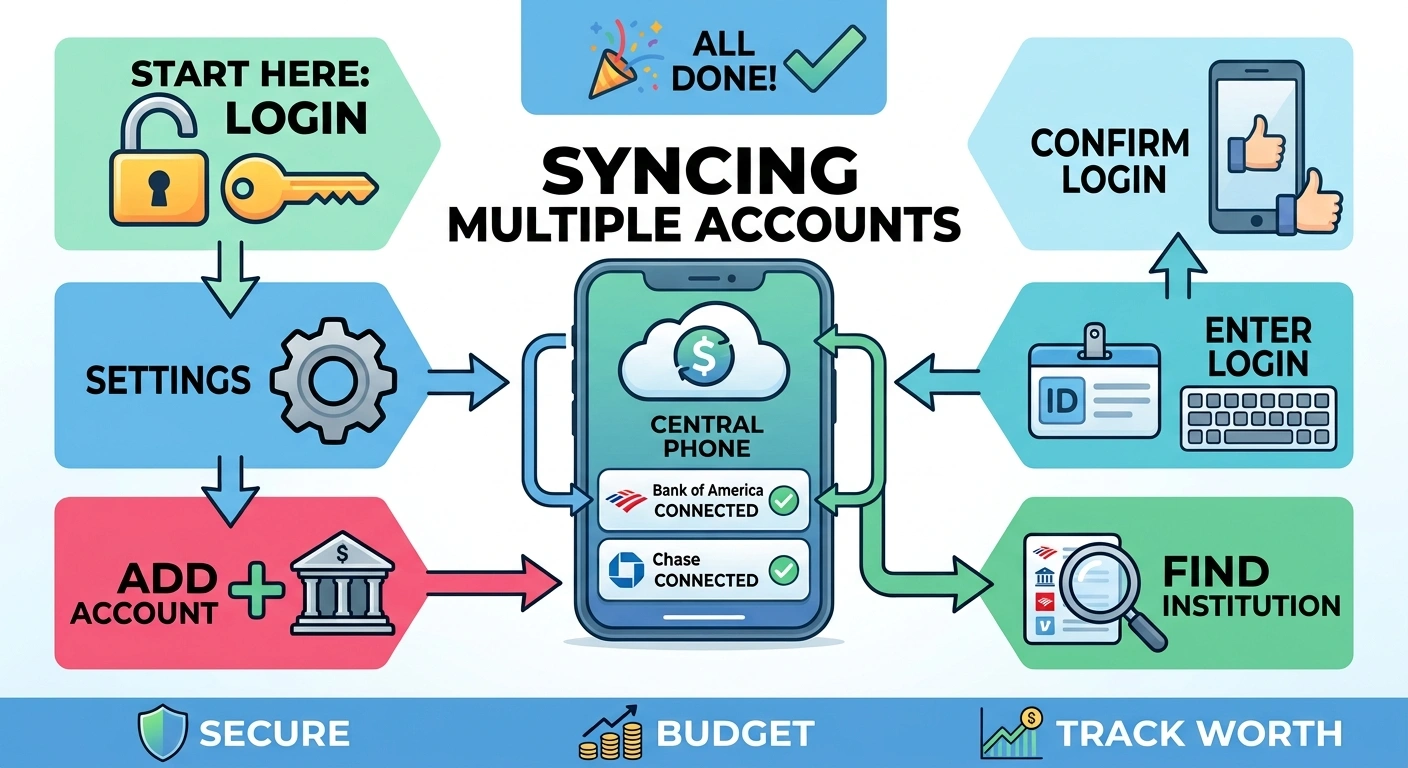
Step 1 Open the account connection section
In most personal finance apps this is labelled something like Accounts, Connected Accounts, Link Account, or Add Account. It is usually accessible from the main dashboard or the settings menu. The exact location varies by app.
Step 2 Search for and select your first institution
The app will display a searchable list of supported financial institutions. Type the name of your bank, credit card provider, or brokerage. Select it from the results. If it does not appear, it may not be supported for automatic connection, in which case manual entry may be an option.
Step 3 Complete the authentication process
After selecting an institution, you will be directed to complete an authentication process. Depending on the institution, you may be redirected to your financial institution to authenticate directly, or you may complete the process within the third-party connection service’s interface. Your credentials are handled by the third-party service or your institution, not by the tracking app itself. Once authentication is complete, the connection is established and the app can begin retrieving available data from that account.
Step 4 Select the accounts to include
The third-party connection service will display the accounts available at that institution. You may have multiple accounts at the same bank, for example a checking account, a savings account, and a credit card. Select each account you want to include in the tracking app. You can typically adjust this selection later from the account settings.
Step 4 Select the accounts to include
The intermediary will display the accounts available at that institution. You may have multiple accounts at the same bank, for example a checking account, a savings account, and a credit card. Select each account you want to include in the tracking app. You can typically adjust this selection later from the account settings.
Step 5 Repeat for each additional institution
Return to the account connection section and repeat the process for each bank, credit card provider, brokerage, or other financial institution you want to connect. There is no requirement to connect everything at once. Connecting your most active accounts first and adding others over time is a practical approach.
Step 6 Review the connected accounts view
Once your accounts are connected, navigate to the main accounts or dashboard view to see the latest available data from your connected accounts. Check that each account appears as expected and that the figures are consistent with your own knowledge of each account balance.
Step 7 Confirm syncing is active for each account
Some apps show a last synced timestamp alongside each connected account. Check this to confirm each connection is active and retrieving available data. If a connection shows an error or has not synced recently, it may need to be re-authenticated.
What Affects How Current the Data Is
The figures in a personal finance app reflect available data from connected accounts as of the most recent sync from each source. Several factors affect how current that data is.
| Factor | What it means in practice |
| Sync frequency | Different apps retrieve data from connected accounts at different intervals. Some retrieve on a daily schedule, others retrieve when you open the app or manually refresh. Check your app’s documentation for its approach. |
| Institution response time | Some financial institutions make transaction data available quickly after a transaction occurs. Others have a delay before data is available through intermediary connections. |
| Pending transactions | A transaction that has been authorised but not yet settled may appear differently across your institution’s own app and a connected tracking app, depending on how each handles pending items. |
| Connection authentication | Some institutions require periodic re-authentication to maintain the connection. If a connection has lapsed, the figures shown will reflect data from the last successful sync, not the current balance. |
| Manual entry accounts | Accounts added manually rather than through a connection will only be as current as the last time you updated the figure. These do not sync and require manual updating. |
When Syncing Stops Working
Connection issues are a normal part of using account syncing over time. A few specific situations come up regularly.
Re-authentication required
Financial institutions periodically require users to re-verify their identity, particularly after a password change, a security update, or a set period of time. When this happens, the connection lapses and the app will typically show a notification or an error alongside the affected account. Resolving this usually involves going to the account settings, selecting the affected connection, and completing the authentication process again.
The institution is temporarily unavailable
Intermediary services rely on connections with financial institutions that can experience temporary outages or maintenance periods. If a sync fails during one of these periods, the connection may restore itself when the institution’s connection is available again. If the issue persists, check the intermediary service’s status page or the app’s support resources.
The institution is no longer supported
Less commonly, an institution may stop being supported by the intermediary service, or the terms of the connection may change. In this case, the app may not be able to restore the automatic connection, and manual entry may become the only option for that account.
The balance or transaction data looks wrong
Available data from a connected account reflects information retrieved at the time of the most recent sync from that source. If a figure appears outdated or inconsistent with your own records, check when the connection last synced. For any figure that matters for a specific financial decision, verify the current balance directly with the institution rather than relying solely on the app’s available data.
Accounts That May Require Manual Entry
Not every type of financial account can be connected through a third-party account connection service. Some account types that may require manual entry include:
• Property values: WealthNX currently does not retrieve property values through a live connected-account data feed. Manual entry of estimated market value may be available where the feature is supported. Confirm current availability with WealthNX.
• Pension accounts without digital connections: Some defined benefit pension accounts or older employer-sponsored plans do not support third-party connections and may require manual balance entry.
• Accounts at smaller institutions: Regional banks, credit unions, and some smaller lenders may not be supported by available third-party account connection services.
• Cryptocurrency self-custody wallets: For wallets not held on a supported exchange, public wallet address monitoring may be available. Confirm current availability with WealthNX before relying on this feature.
• Vehicles and other physical assets: Current market values for vehicles and other physical assets are not available through account connections. Manual entry may be available where the feature is supported. Confirm current availability with WealthNX.
Where manual entry is available, entering these figures keeps the overall financial picture more complete. These manually entered figures will only be as current as the last time they were updated and do not retrieve data from external sources.
How WealthNX Handles Multi-Account Syncing
WealthNX can connect to supported bank and brokerage accounts through read only connections and retrieves available account data, including balances and holdings as applicable, from supported connected accounts. For WealthNX, supported account connections are read-only: the app does not initiate transfers, make payments, or take any action on connected accounts.
Where supported, the WealthNX AI assistant can surface informational observations about your connected financial picture based on available data from those accounts. You can ask plain-language questions about balances, spending patterns, and trends across your connected accounts, and receive informational responses based on available data. All observations provided by WealthNX are informational only and should not be interpreted as financial advice. Responses may be affected by incomplete, delayed, or unavailable data from connected accounts.
WealthNX holds ISO 27001 certification, the internationally recognised standard for information security management. Before connecting accounts, review WealthNX’s privacy policy to understand how financial information is collected, used, shared, and protected. WealthNX is the publisher of this article and references its own services where relevant.
Once your accounts are connected, the app handles data retrieval from supported connected accounts. You do not need to log in to each institution separately to keep the figures in the app up to date.
Conclusion
Setting up syncing for multiple accounts in a personal finance app is a one-time process per institution. Connect each account through the app’s connection section, complete the authentication process presented by the third-party connection service or your financial institution, select the accounts to include, and the app retrieves available data from those connections going forward. The figures in the app reflect available data from each connected source as of the most recent sync and may not always reflect transactions that occurred very recently.
For accounts that cannot connect automatically, manual entry is usually available. Keeping those figures updated periodically ensures the overall picture remains as complete as the account types allow. For any balance that matters for a specific decision, verify it directly with the relevant institution.
Frequently Asked Questions
Do I need to do anything to keep my accounts syncing after the initial setup?
Generally no, for accounts connected through an intermediary service. The app retrieves available data from connected accounts without requiring you to manually trigger each update. You may occasionally need to re-authenticate a connection if the institution requires it, for example after a password change or a security update. The app should notify you when this is needed.
How often does the app sync my account data?
The frequency varies by app and by institution. Some apps retrieve available data daily, others retrieve when you open the app or manually refresh. The figures shown reflect available data as of the most recent sync from each connected source, which may differ between accounts. Check your specific app’s documentation for its approach to data retrieval frequency.
What if one of my accounts is not in the supported institution list?
If an institution is not supported for automatic connection, most personal finance apps offer a manual account entry option. You enter the balance yourself and update it periodically. Manually entered figures reflect the balance as of the last time you updated them and do not retrieve data from external sources.
Is it safe to connect multiple accounts to one app?
Connecting through a third-party account connection service is a widely used approach for personal finance apps. For WealthNX, supported account connections are read-only: the app can access financial information made available through the connection but cannot initiate transfers or take any action on your accounts. Before connecting, review the app’s security documentation to confirm how connections work, and review the privacy policy to understand how your financial information is handled. WealthNX holds ISO 27001 certification, the internationally recognised standard for information security management.
Can I disconnect an account after connecting it?
Yes. Most personal finance apps allow you to remove a connected account from within the account settings. Removing a connection from the app does not close or affect the account itself at the financial institution. It simply removes the link between the app and that account, after which the app will no longer retrieve available data from that source.
Disclaimer
This article is for general informational and educational purposes only and does not constitute financial, technical, or cybersecurity advice. WealthNX is the publisher of this article and references its own services where relevant. WealthNX holds ISO 27001 certification, the internationally recognised standard for information security management.
All AI generated observations provided by WealthNX are informational only and are not personalised financial advice. Responses are generated from available data from connected accounts and may be affected by incomplete, delayed, or unavailable data from connected accounts. For advice tailored to your situation, consult a licensed financial advisor.