
Your banking app holds the keys to your financial life. One weak password stands between someone else and your hard-earned money. That’s where two-factor authentication (2FA) comes in—a second layer of protection that makes unauthorized access significantly harder.
This guide breaks down the most common 2FA methods used in banking apps today, how they work, and which ones offer the strongest protection for your accounts.
What Is Two-Factor Authentication?
Two-factor authentication requires two different types of proof before letting you into your account. Think of it like needing both a key and a security code to open a vault.
The three main categories of proof are:
- Something you know (password, PIN)
- Something you have (phone, security key)
- Something you are (fingerprint, face scan)
True 2FA combines two different categories. A password plus a security question doesn’t count because both are things you know.
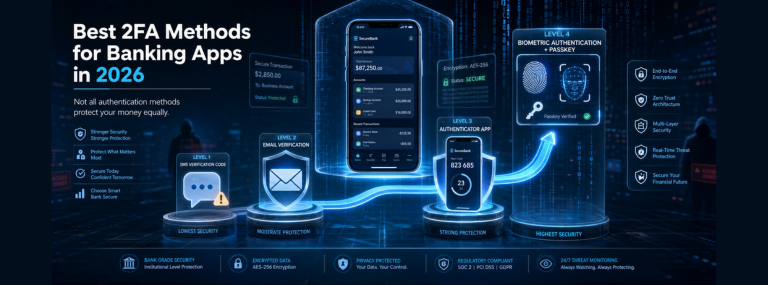
The Three Main 2FA Methods in Banking
SMS Text Message Codes
How it works: After entering your password, the bank sends a six-digit code to your phone via text message. You type this code into the app to complete login.
Security level: Basic
SMS codes remain the most widely used 2FA method in banking because nearly everyone has a phone that can receive texts. The approach is straightforward: you get a code, you enter it, you’re in.
However, SMS has known vulnerabilities. Attackers can intercept text messages through SIM swapping (convincing your phone carrier to transfer your number to a new SIM card) or SS7 protocol exploits that redirect messages. The National Institute of Standards and Technology deprecated SMS-based 2FA for sensitive applications in 2016 (Grassi et al., 2017).
Best for: People who don’t want to install additional apps or those with limited smartphone capabilities.
Authenticator Apps
How it works: You install an app like Google Authenticator, Microsoft Authenticator, or Authy on your phone. The app generates a new six-digit code every 30 seconds using a mathematical formula. No internet connection needed after initial setup.
Security level: Strong
Authenticator apps use Time-based One-Time Passwords (TOTP), which create codes based on the current time and a secret key stored in your device. Because the codes change every 30 seconds and exist only on your device, intercepting them becomes much harder.
Unlike SMS codes that travel through phone networks, authenticator codes never leave your device. An attacker would need physical access to your phone—not just your phone number—to generate valid codes.
Best for: Most people who have smartphones and want strong security without extra hardware.
Biometric Authentication
How it works: Your phone scans your fingerprint, face, or iris and compares it to stored data. If it matches, you’re authenticated.
Security level: Very Strong
Modern biometric systems like Face ID and fingerprint sensors have become remarkably accurate. Apple’s Face ID has a 1 in 1,000,000 chance of someone else unlocking your device, compared to 1 in 50,000 for Touch ID (Apple, 2023).
The key advantage: your biometric data is you. No one can steal it remotely, and you can’t forget it at home. Most banking apps now combine biometrics with device recognition, so even if someone somehow bypassed the biometric lock, they’d still need your actual phone.
However, biometrics aren’t perfect. Identical twins can sometimes unlock each other’s Face ID. Severe injuries might prevent fingerprint recognition. And unlike passwords, you can’t change your face or fingerprints if they’re compromised.
Best for: Quick daily access while maintaining strong security, especially when combined with other methods.
Comparing 2FA Methods: What the Data Shows
|
Method |
Security Strength |
Convenience |
Setup Difficulty |
Vulnerability to Remote Attacks |
|
SMS Codes |
Low-Medium |
High |
Very Easy |
High (SIM swapping, interception) |
|
Authenticator Apps |
High |
Medium-High |
Easy |
Very Low |
|
Biometrics |
Very High |
Very High |
Easy |
Very Low |
|
Hardware Keys |
Very High |
Medium |
Medium |
Extremely Low |
|
Push Notifications |
High |
Very High |
Easy |
Low |
How to Set Up Authenticator App 2FA
Most banks that support authenticator apps follow a similar setup process:
- Open your banking app and navigate to Settings or Security
- Look for “Two-Factor Authentication” or “Security Settings”
- Select “Authenticator App” as your 2FA method
- Download an authenticator app if you don’t have one (Google Authenticator, Microsoft Authenticator, and Authy are popular free options)
- Scan the QR code displayed in your banking app using your authenticator app
- Enter the six-digit code from your authenticator app to confirm setup
- Save backup codes somewhere safe (not on your phone) in case you lose access to your authenticator
The entire process typically takes three to five minutes. Once set up, you’ll enter codes from your authenticator app each time you log in from a new device.
Security at WealthNX
At WealthNX, security isn’t an afterthought—it’s built into every layer of the platform. WealthNX AI implements bank-level encryption, multi-factor authentication, and follows industry security standards including SOC 2 compliance frameworks.
The platform uses encrypted connections for all data transmission and stores sensitive information using AES-256 encryption, the same standard used by financial institutions worldwide. Regular security audits and penetration testing ensure vulnerabilities are identified and addressed before they become risks.
For users, this means your financial data remains protected through the same rigorous protocols that major banks employ, combined with the advanced capabilities of AI-driven financial management.
Beyond Basic 2FA: Additional Protection Layers
The strongest security combines multiple approaches:
Device recognition remembers trusted devices and requires additional verification from new ones. If someone gets your password and 2FA code but logs in from a new device in a different country, the bank will flag this as suspicious.
Biometric plus authenticator offers excellent balance. Use fingerprint or face recognition for daily logins on your primary device, but keep an authenticator app as backup for when you switch phones or travel.
Hardware security keys like YubiKey provide the highest security level. These physical USB or NFC devices generate authentication codes and are virtually impossible to phish or hack remotely. Some banks now support these for high-value accounts.
Common 2FA Mistakes to Avoid
Using SMS when better options exist. If your bank offers authenticator apps or biometrics, use those instead of SMS. The convenience difference is minimal, but the security improvement is substantial.
Not saving backup codes. When you lose your phone, backup codes are often your only way back into your account without a lengthy verification process. Write them down and store them somewhere secure.
Using the same phone number for multiple accounts. If that number gets compromised through SIM swapping, attackers access everything at once. Consider using different authentication methods for different account types.
Storing authenticator apps only on your phone. If your phone dies, gets stolen, or breaks, you’ll lose access to all accounts. Many authenticator apps offer encrypted cloud backup or multi-device sync.
What If You Lose Your Phone?
Most banks provide several recovery options:
Contact customer service with identification documents. They’ll verify your identity and temporarily disable 2FA so you can regain access. This process typically takes 24-48 hours.
Use backup codes saved during initial setup. Each code usually works once, so keep them secure.
Access from a previously authenticated device if you enabled “remember this device” features.
Research on 2FA Effectiveness
Studies consistently show that any form of 2FA dramatically reduces account compromises. Google found that security keys blocked 100% of automated bots, 99% of bulk phishing attacks, and 90% of targeted attacks in their study of employee accounts (Reese et al., 2019).
Microsoft reported that multi-factor authentication blocks over 99.9% of account compromise attacks, even with SMS as the second factor (Microsoft, 2019). The difference between no 2FA and basic SMS 2FA is far more significant than the difference between SMS and authenticator apps.
The takeaway: using any 2FA is infinitely better than using none.
Making Your Choice
For most people, the best approach combines biometrics for regular access with an authenticator app as backup. This setup provides:
- Quick access through fingerprint or face scan
- Strong security that doesn’t rely on phone networks
- Reliable backup when biometrics fail or you switch devices
If your bank doesn’t support authenticator apps yet, SMS 2FA still provides substantially more protection than passwords alone. Just be aware of its limitations and monitor your accounts regularly for suspicious activity.
Frequently Asked Questions
Can I use the same authenticator app for multiple banks?
Yes. One authenticator app can manage codes for dozens of different accounts. Each account gets its own separate code that changes every 30 seconds.
What happens if my authenticator app phone dies?
Use your backup codes to log in, then set up 2FA on a new device. This is why saving backup codes during initial setup matters. Some authenticator apps like Authy offer encrypted cloud backup to prevent this situation.
Is Face ID actually more secure than a PIN?
For device unlock, yes. Modern face recognition has about 1 in 1,000,000 false acceptance rate. However, someone can’t force you to give up a PIN you’ve memorized, while they could potentially force biometric authentication. The strongest approach uses both.
Why do some banks still use SMS codes?
Compatibility and user base. SMS works on any phone, including basic models. Many customers—particularly older users—find SMS more familiar than authenticator apps. Banks balance security with accessibility.
Can hackers get around 2FA?
Sophisticated attackers can bypass 2FA through phishing (tricking you into entering codes on fake websites), malware on your device, or social engineering. However, 2FA blocks the vast majority of automated attacks and makes targeted attacks much more difficult and expensive to execute.
Do I need different 2FA methods for different accounts?
Using authenticator apps for all accounts works well. The codes are different for each service even though they come from the same app. However, consider using hardware keys for your most sensitive accounts like primary email and banking.
What if I travel internationally?
Authenticator apps work anywhere without international fees or roaming charges since they don’t require an internet connection. SMS codes might not arrive if you don’t have international service. Enable authenticator apps before traveling.
References
Apple. (2023). About Face ID advanced technology. Apple Support. https://support.apple.com/en-us/HT208108
Grassi, P. A., Garcia, M. E., & Fenton, J. L. (2017). Digital identity guidelines: Authentication and lifecycle management (NIST Special Publication 800-63B). National Institute of Standards and Technology. https://doi.org/10.6028/NIST.SP.800-63b
Microsoft. (2019). Your pa$$word doesn’t matter. Microsoft Security Blog. https://techcommunity.microsoft.com/t5/microsoft-entra-blog/your-pa-word-doesn-t-matter/ba-p/731984
Reese, K., Smith, T., Dutson, J., Armknecht, J., Cameron, J., & Seamons, K. (2019). A usability study of five two-factor authentication methods. Proceedings of the Fifteenth Symposium on Usable Privacy and Security (SOUPS 2019), 357-370. https://www.usenix.org/conference/soups2019/presentation/reese